MAC
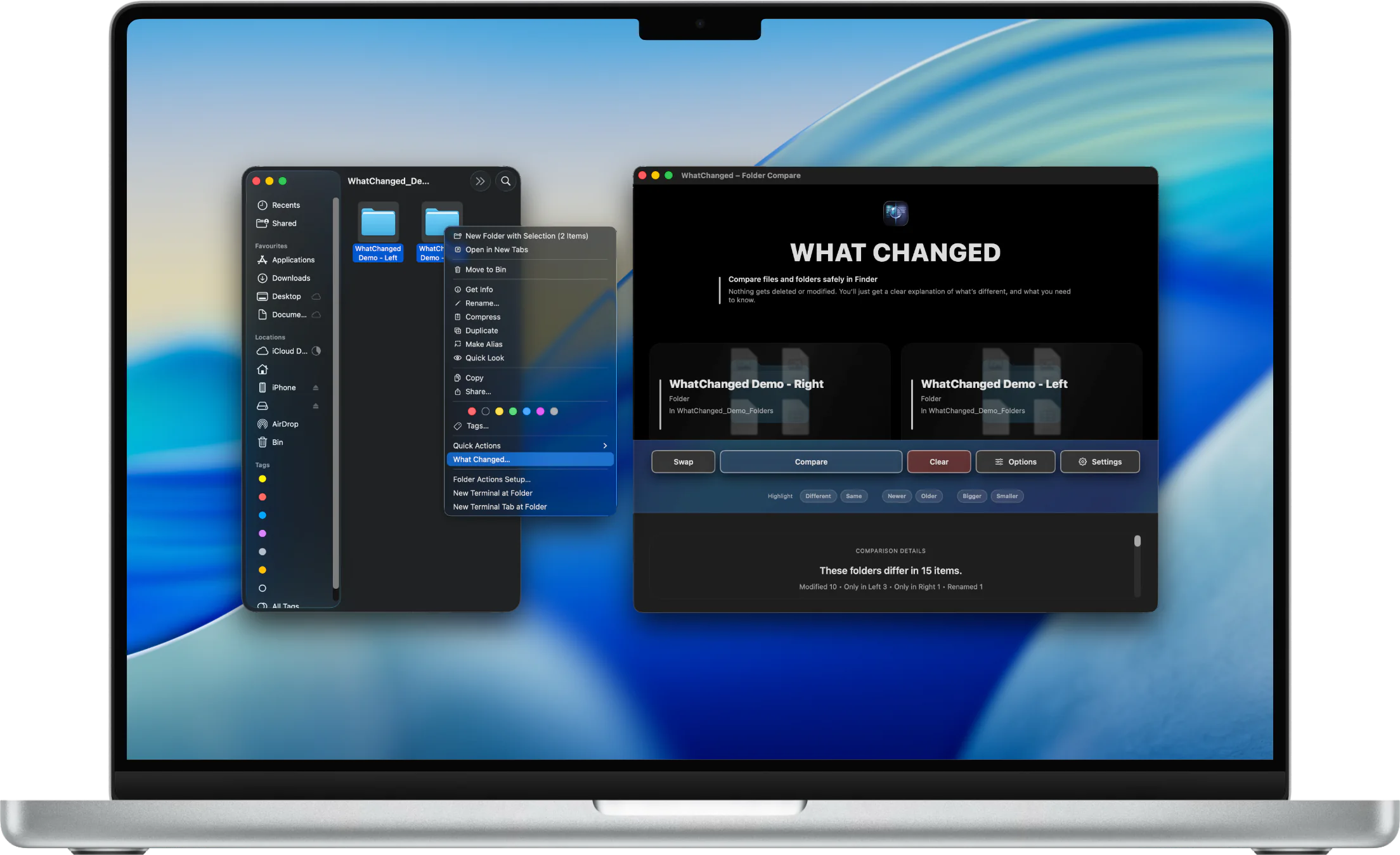
Start from Finder
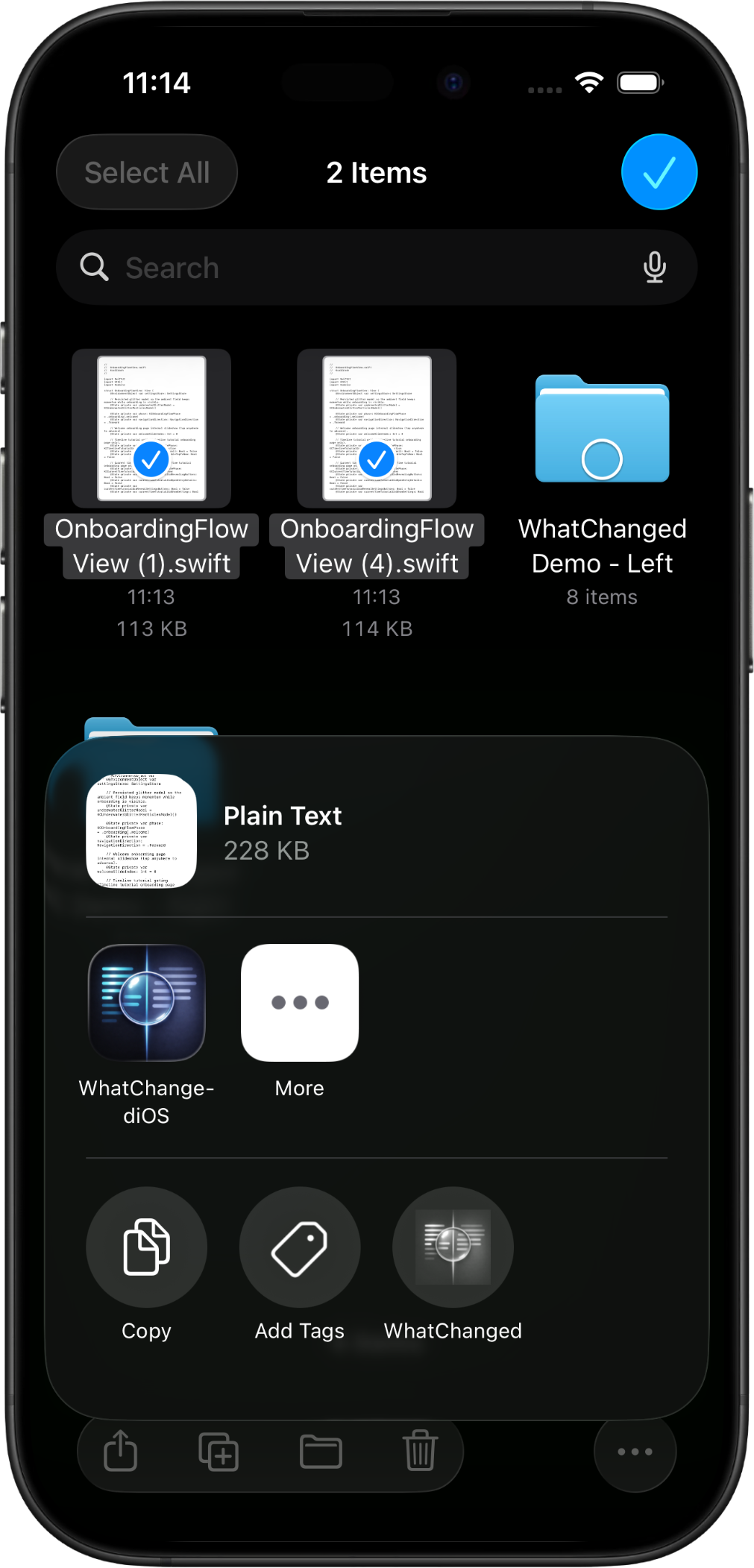
On Mac, select two items in a monitored folder and open the comparison from Finder.

Comparison app
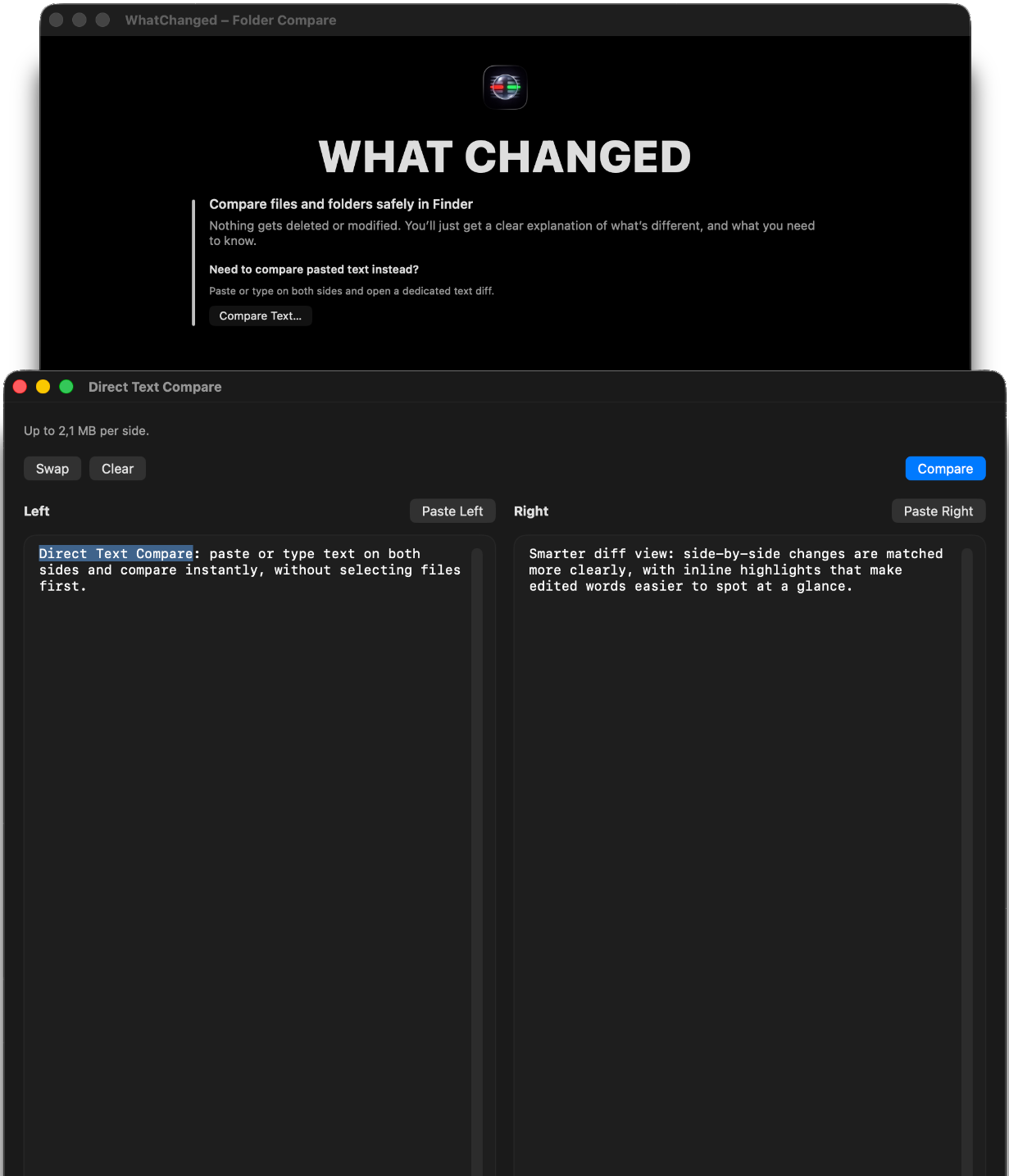
Compare files, folders, and text without changing the originals.
WhatChanged is a read-only comparison app for iPhone, iPad, and Mac. Review text changes, spot renames, use ignore rules, and create clearer reports when you need to see what moved.

Visual tour
Start from Files, Finder, drag and drop, or direct text. WhatChanged keeps the originals read-only while the report separates what moved.
Use Finder when the comparison begins where the files already are.
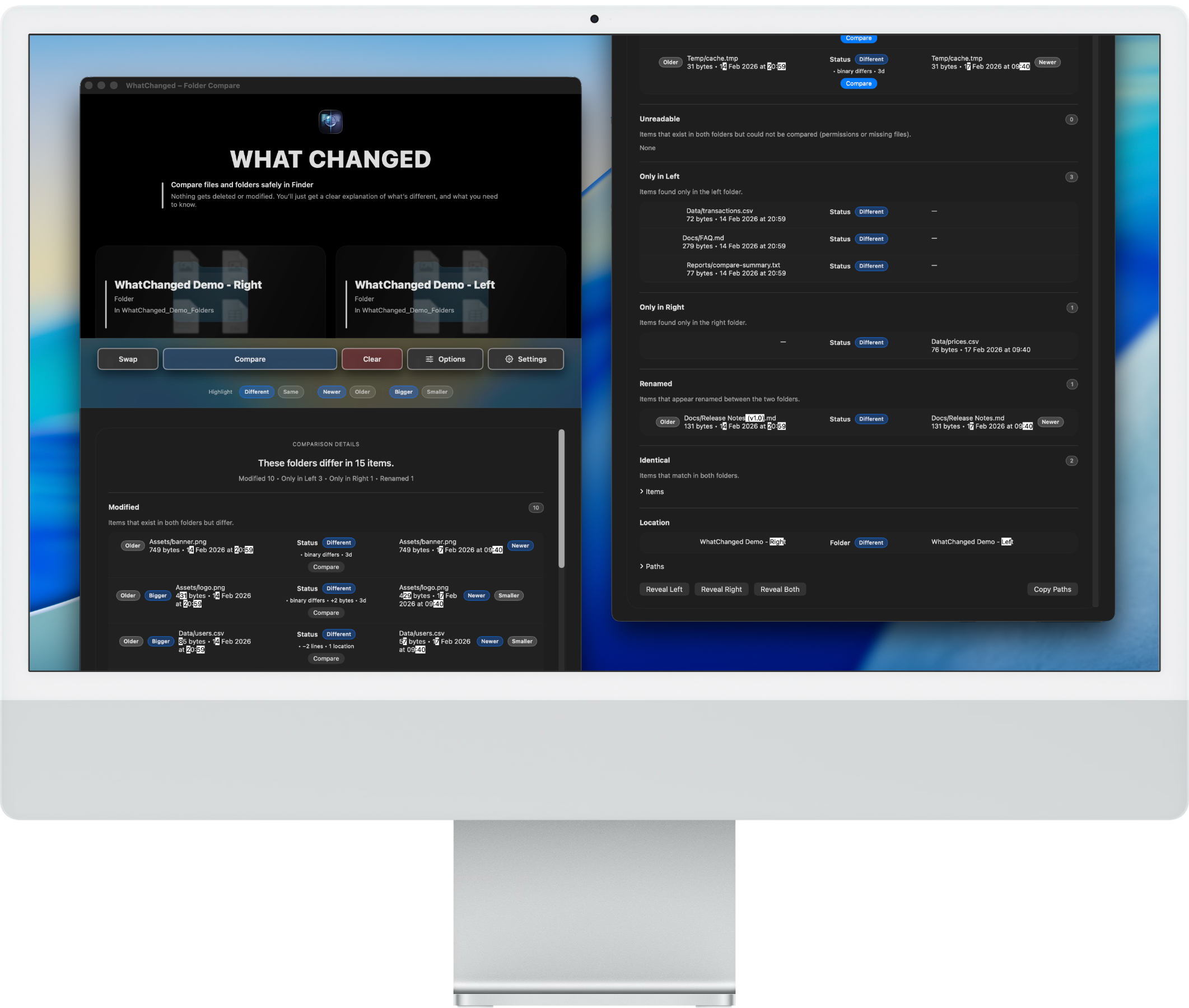
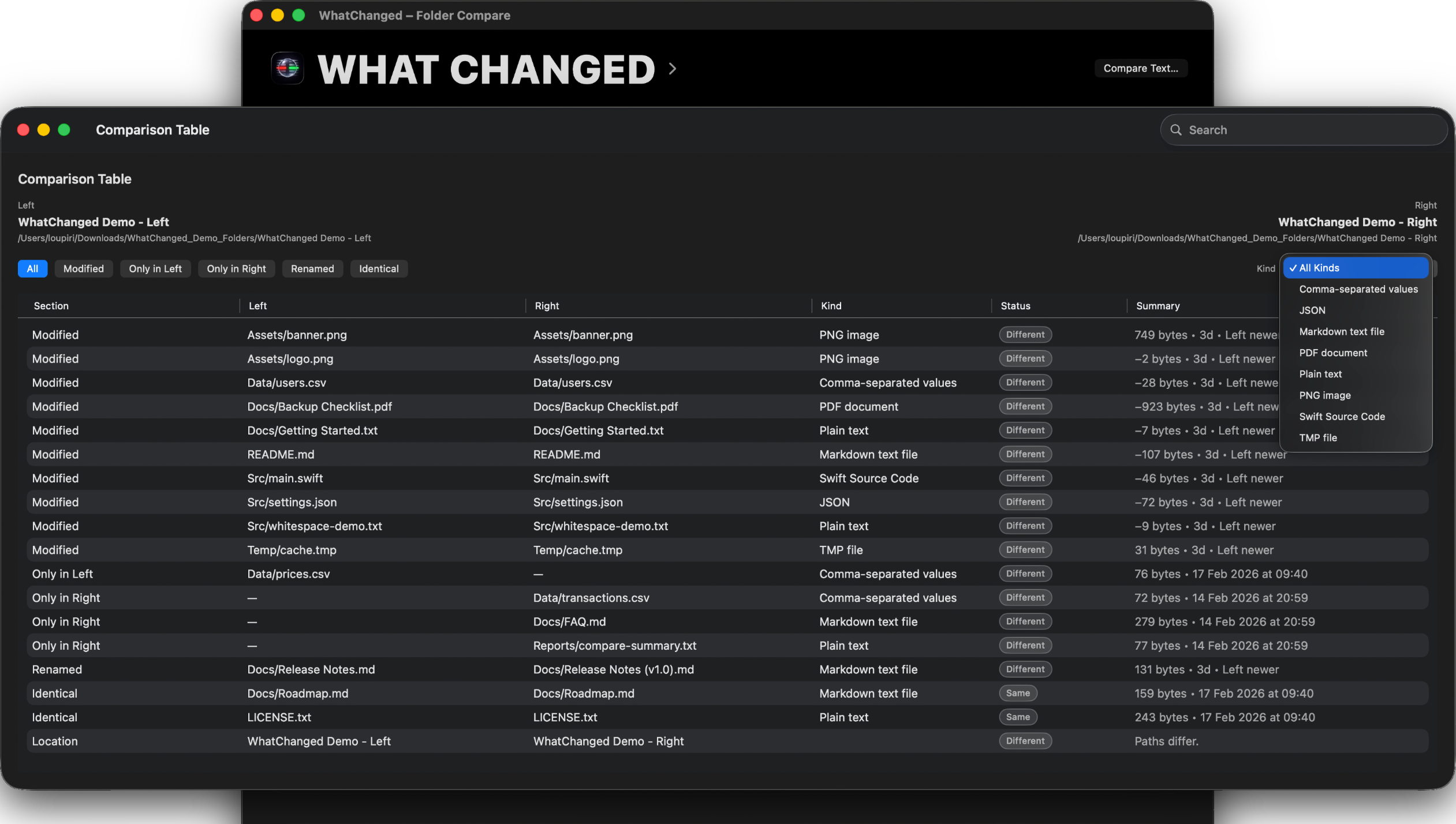
The main change types stay together, so the review has one clear place to start.
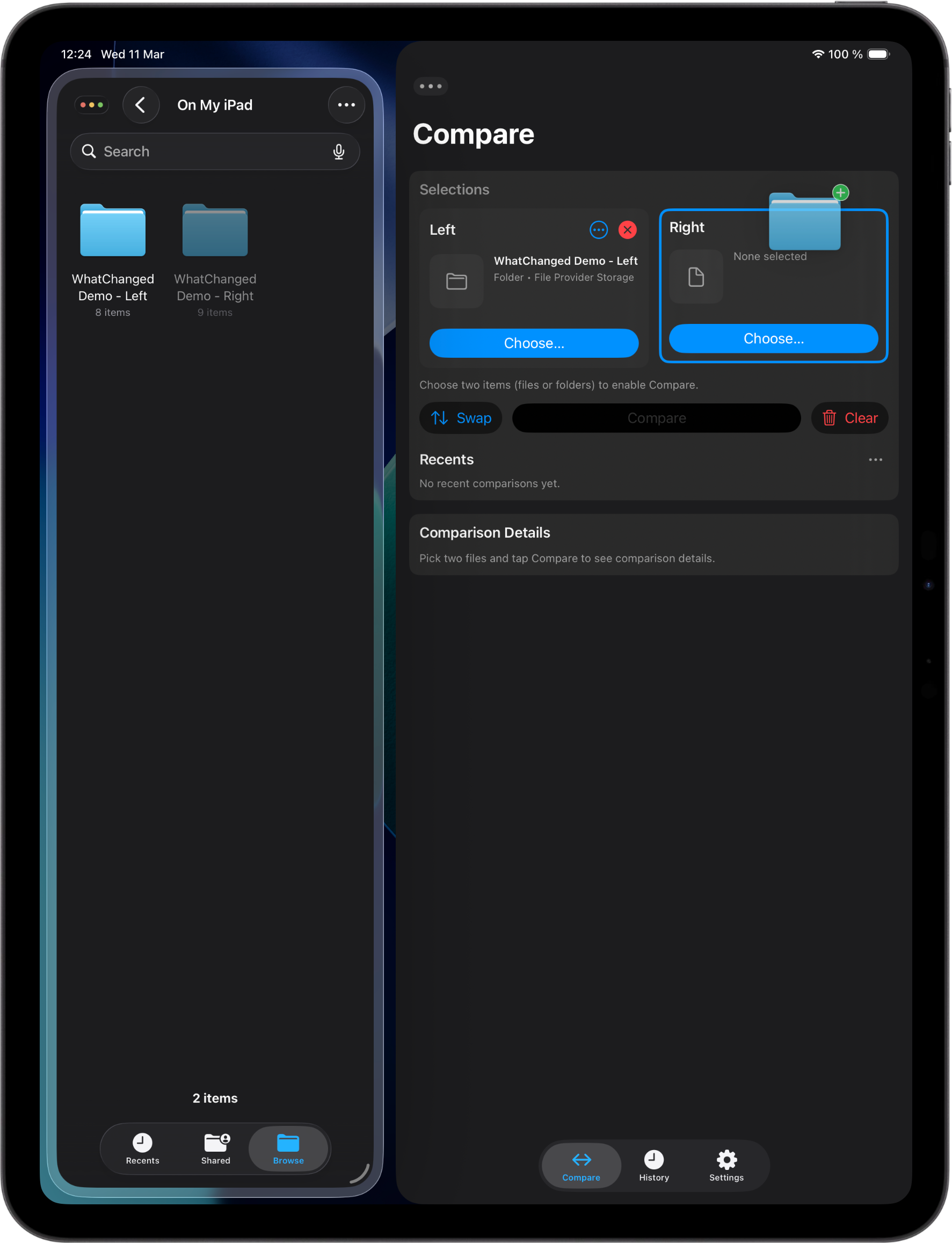
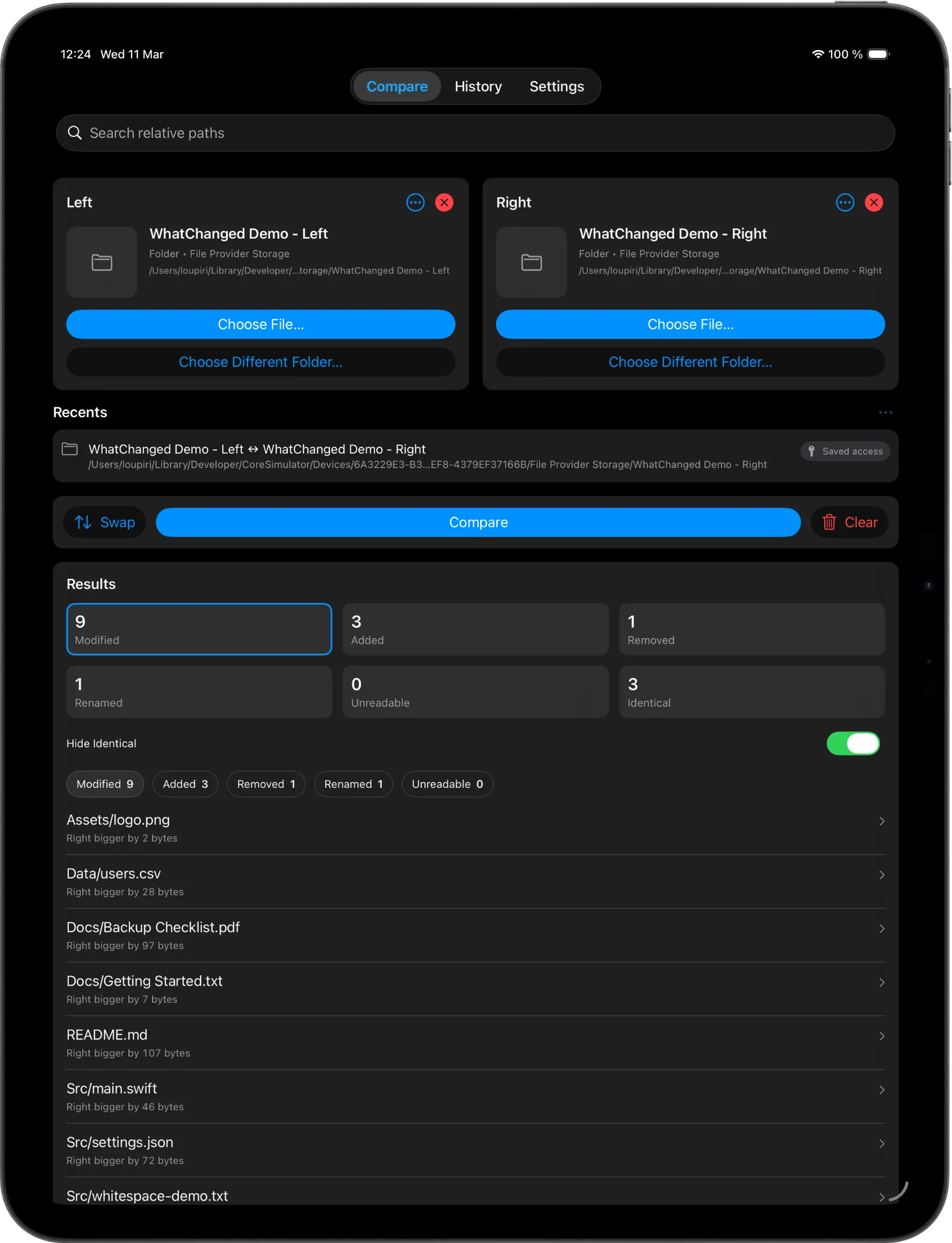
Pick two items, set left and right, and see what changed without touching the originals.
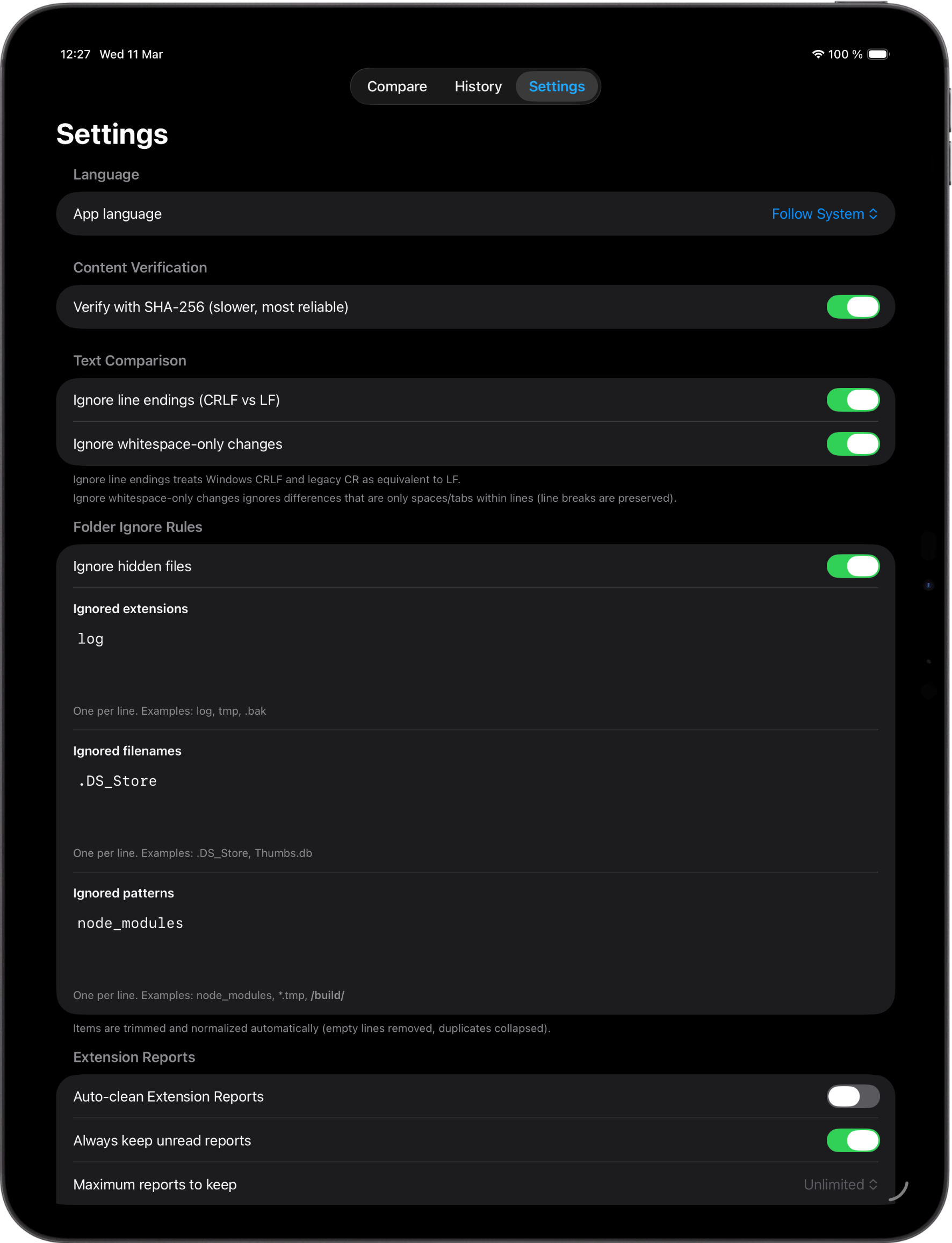
Filter expected differences, quiet whitespace or line-ending changes, and use optional SHA-256 when a stricter check helps.
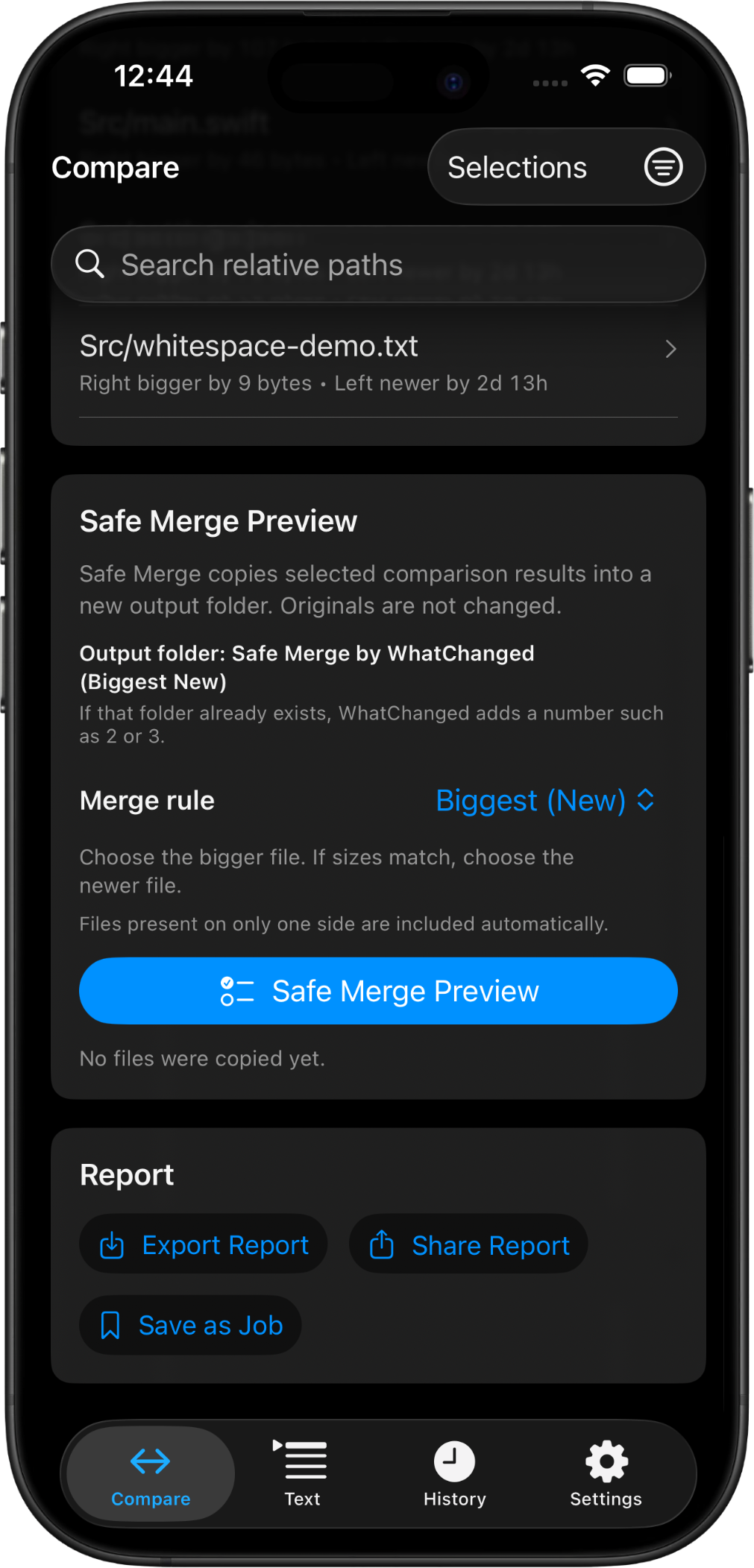
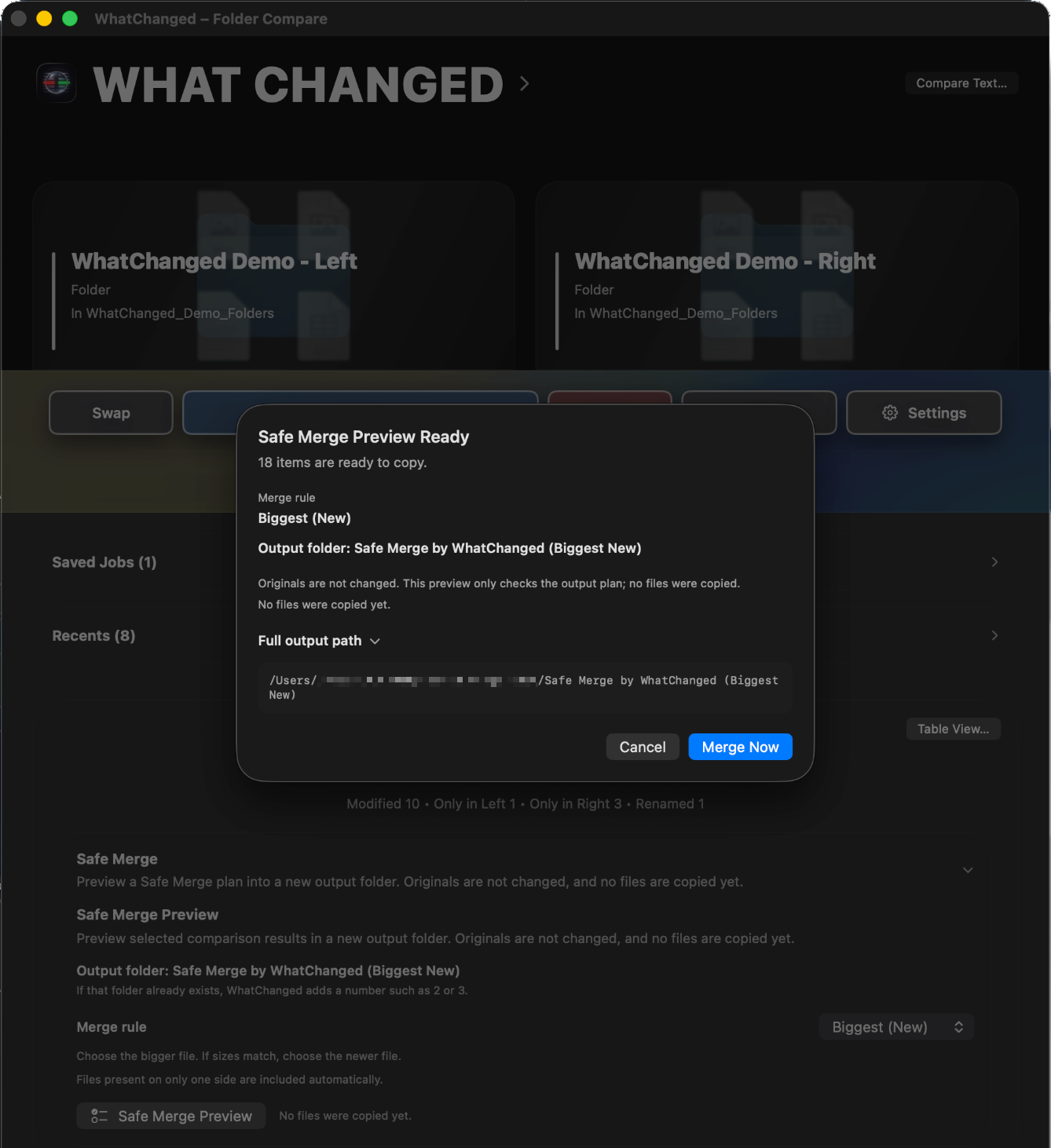
Review the merge plan before anything is created or copied.
Start from the workflow you already use
Use the main app for files, folders, and direct text. On iPhone and iPad, the share sheet is there for file-to-file checks. On Mac, Finder can become the entry point for monitored folders.
Choose two files or two folders, set the left and right sides, then compare.
On iPhone and iPad, select exactly two files and send them to WhatChanged through the share sheet.
On Mac, compare inside WhatChanged or use the Finder workflow for items in monitored folders.
See the changes clearly
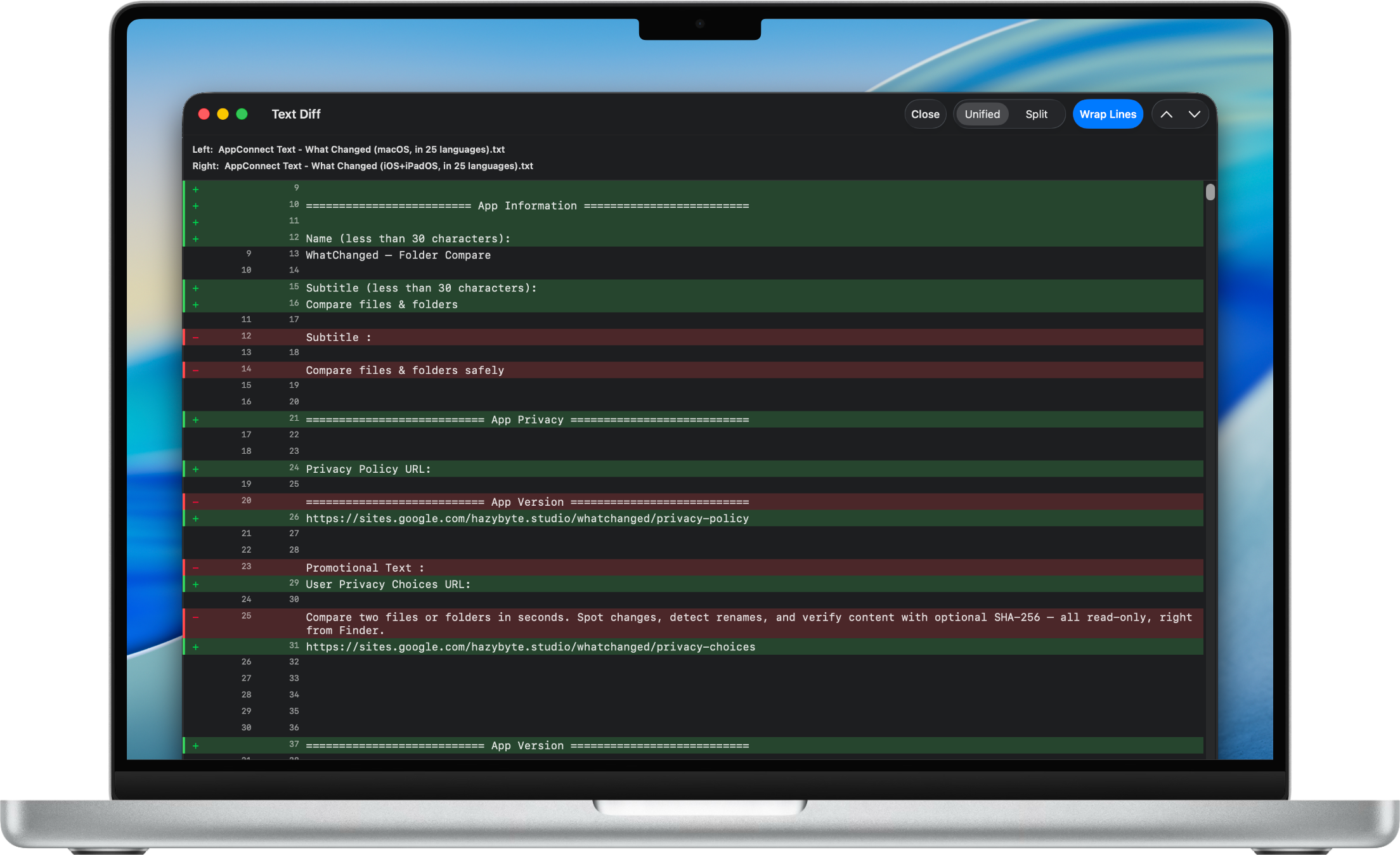
WhatChanged helps answer "what's different?" without turning the original files into a working area. Files, folders, and text stay read-only while the report separates the changes.
Report
Text files
Direct text
Ignore noise, verify content
Some differences matter. Some are expected. WhatChanged gives you a small set of controls for reducing routine noise and checking content more closely when needed.
Ignore rules
SHA-256
Text options
Keep the result useful
Open a supported file from the result when you need to inspect it before moving on.
Return to recent comparisons without rebuilding the same context from scratch.
Keep a clear record when the result needs to be reviewed again or passed along.
Safe Merge
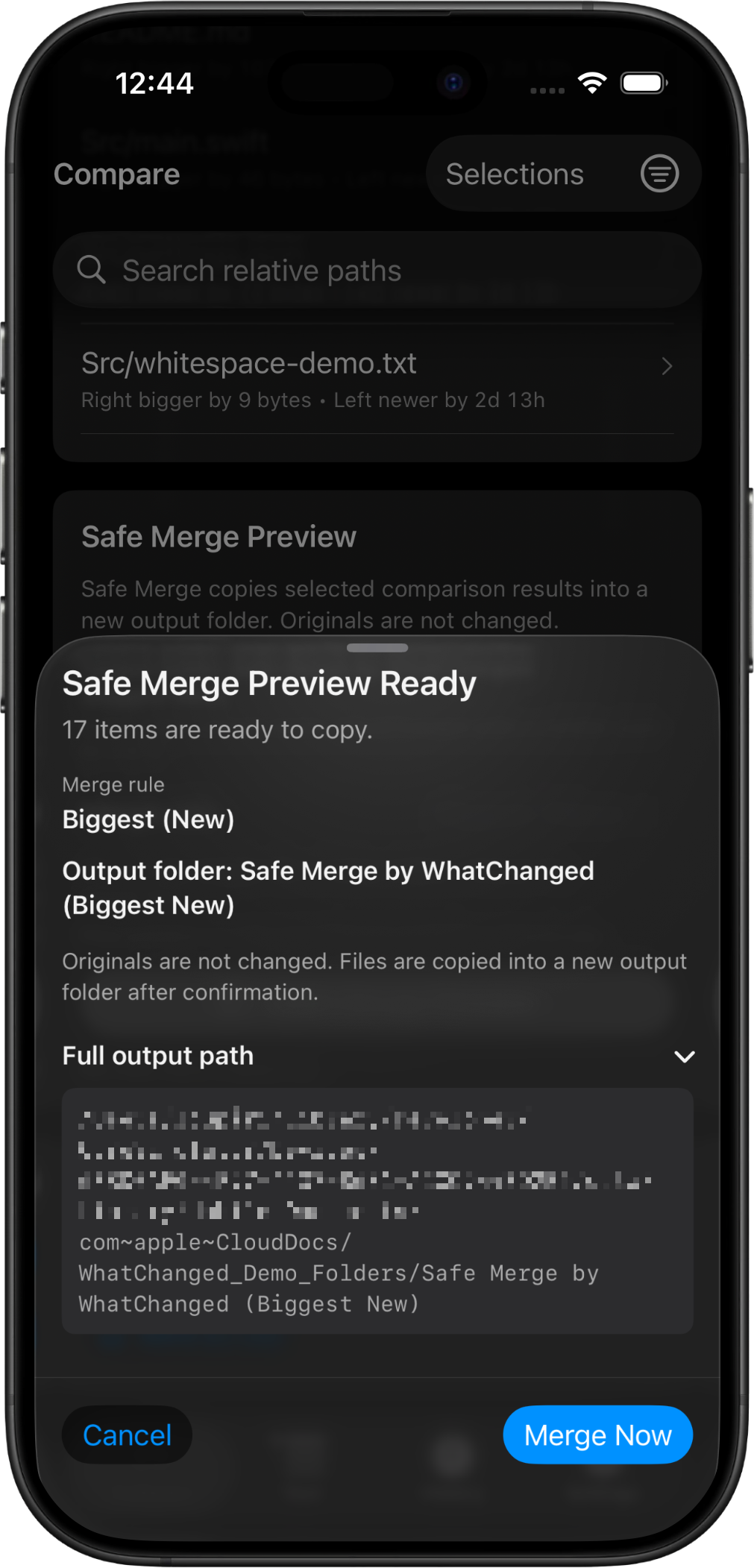
Safe Merge turns a completed folder comparison into a confirmed copy operation. You preview the plan first, choose how matching paths are handled, and keep the compared folders unchanged.
After a completed folder comparison, review the merge plan, output folder, and safety notes before anything is created.
Pick Newest, Oldest, Smallest, or Biggest to decide which same-path file is copied into the result.
WhatChanged copies selected results into a new output folder, can add a README, and blocks unsafe destinations or overwrite risks.
Across Apple devices
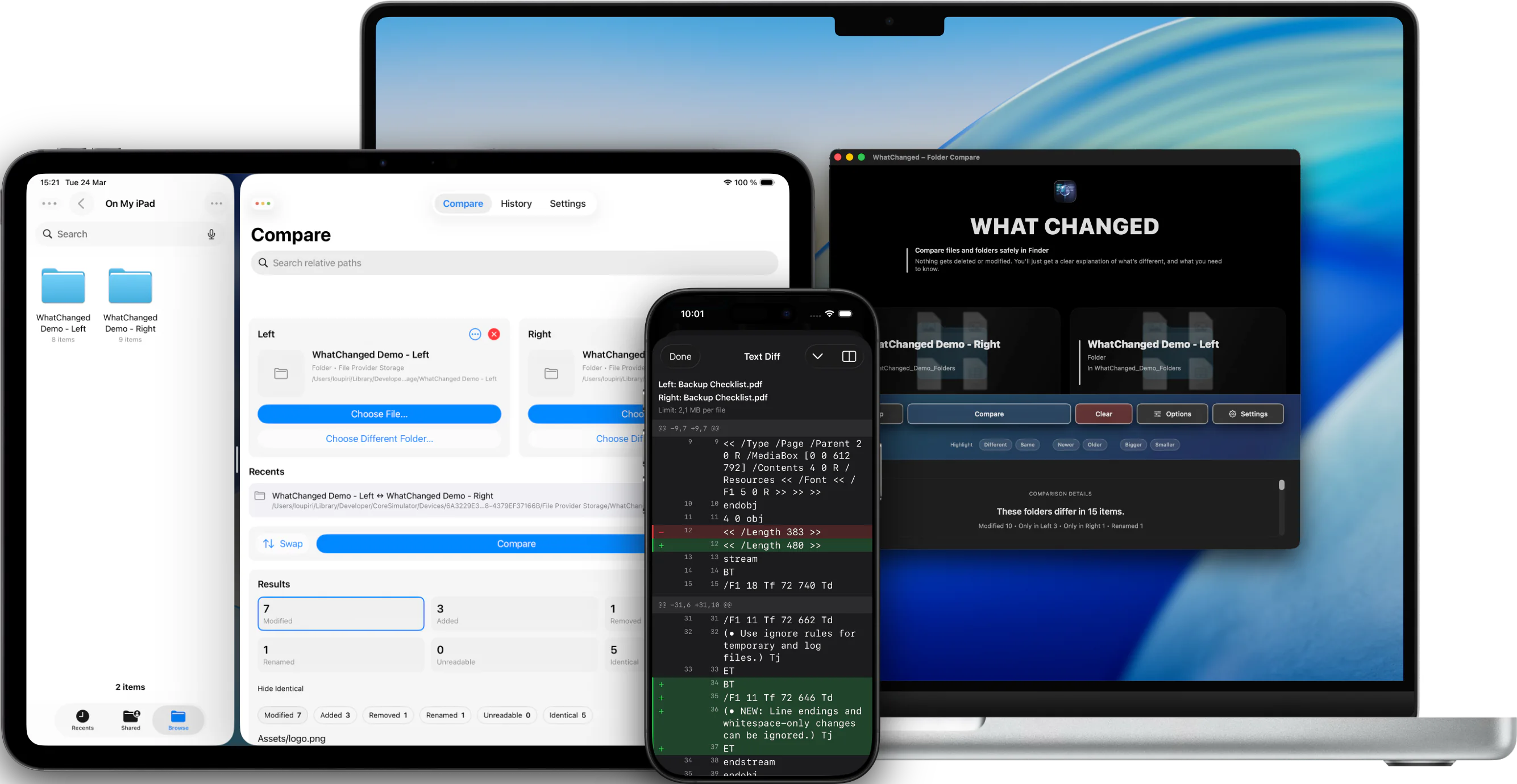
WhatChanged is built for iPhone, iPad, and Mac, with platform-specific entry points that keep comparison close to the files you are already looking at.
iPhone
iPad
Mac
Languages 25 languages, with an optional in-app language override.
Requirements iOS 16.6 or later, and macOS 14.6 or later.
Purchase One-time purchase. No subscription.
Good for
Available now
WhatChanged is available as a one-time purchase on the App Store for iPhone, iPad, and Mac, with no subscription.